Be your best portrait on every call.
The first seven seconds of a video call decide how the next hour goes. 5iveHead Live makes them count, in job interviews, client meetings and everything in between. Everything happens on your device.
Keyboard: 0–3 change level · F full screen. For best results, face the camera in good light.
Make the first seven seconds count
Research shows that impressions on video form almost immediately, and they are very hard to change.
Source: 5iveHead Research, survey of 1,204 hiring managers and 3,880 professionals, September 2026.
For the calls that matter
Wherever you appear on screen, you only get one first impression.
Job interviews
The interview is decided before the first question. Join as your best portrait and let the conversation start from the right place.
Client and sales calls
Clients notice who looks ready to take charge. Open every call with a presence that suggests the deal is already in hand.
Board and leadership meetings
Be the person people look at when a decision needs to be made. Executive level is designed for the head of the table.
Webinars and keynotes
Hundreds of faces, one portrait that stays in the memory. Use full screen for a clean, consistent output.
All-hands and team calls
Remote teams take cues from their leaders. Show up looking like someone who has thought about the quarter.
Your first day
New colleagues will form a view of you in a single call. Make it the view you would choose.
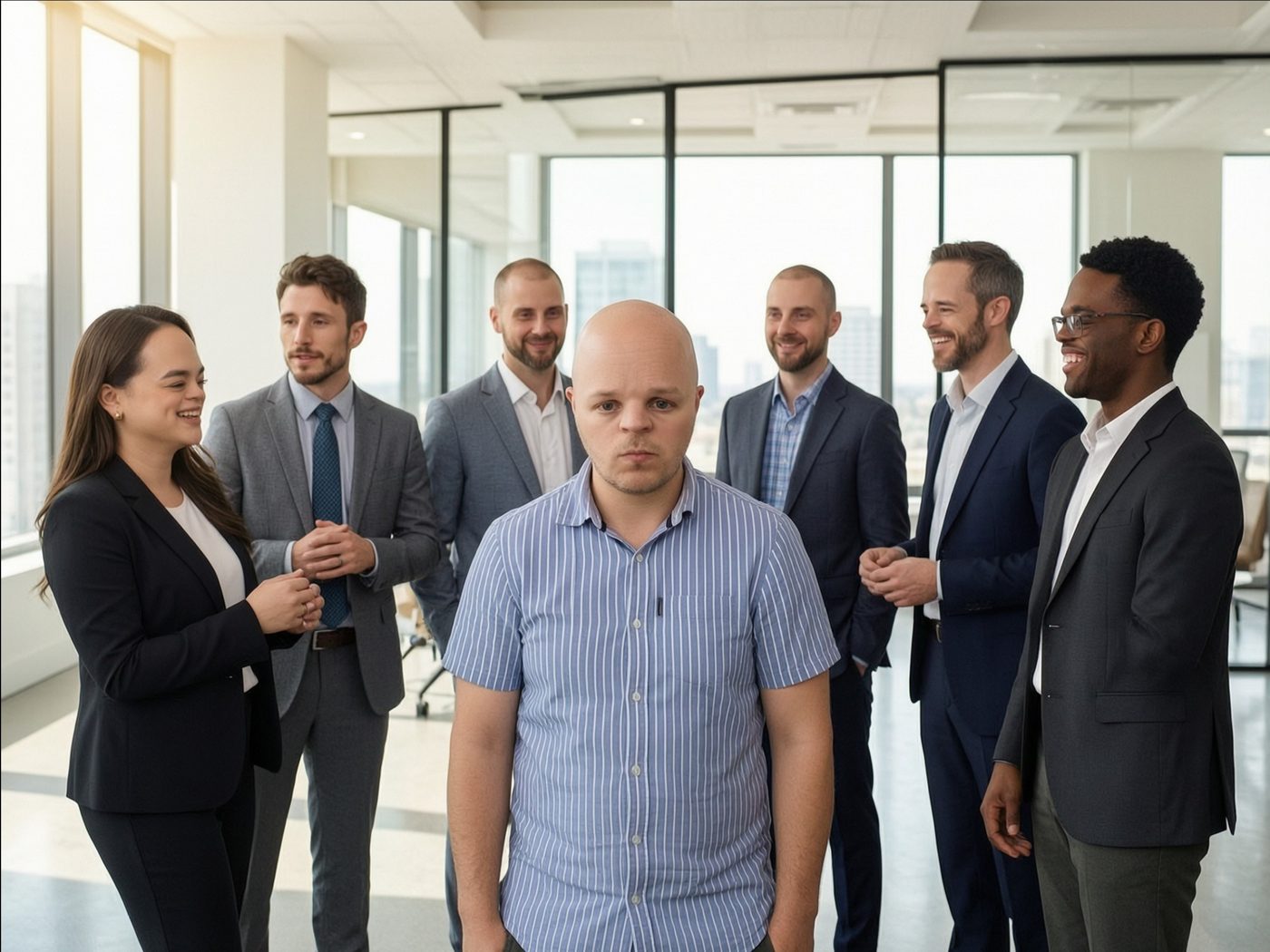
What our users say
I used to get talked over on every call. Now people wait for me to finish.
I got the job. I won't say it was Live, but I did use Live.
My team started turning their cameras on. I did not ask them to.
Your interview-day checklist
Four minutes of preparation. A much better first impression.
Check the light
Face a window or a lamp. Even light gives the most consistent result.
Choose a level
Professional suits most interviews. Executive is recommended for senior roles.
Join two minutes early
Keep 5iveHead Live running so your portrait is already in place when the host admits you.
Use 5iveHead Live in your meetings
Works with Zoom, Microsoft Teams, Google Meet and any app that accepts a virtual camera.
Start your camera
Open this page in Chrome or Edge and choose a level. Select Full screen for a clean output.
Capture the window
In OBS Studio, add a Window Capture of this browser window and choose Start Virtual Camera.
Select the virtual camera
In your meeting app, choose OBS Virtual Camera as your camera. That's it.
A one-click 5iveHead virtual camera and browser extension are included with the Executive plan and are coming soon.
Questions about Live
Is my video uploaded?
No. Video is processed in your browser, on your device. Nothing is sent to our servers.
Which browsers are supported?
Recent versions of Chrome, Edge and Safari on desktop. A modern graphics card is recommended.
Why does the picture sometimes change when I move?
5iveHead Live follows your portrait many times a second. Facing the camera in even light gives the most consistent results. If it loses you, it will fade back to your original picture and return when you do.
Does it work with glasses?
Yes, though results are best without strong reflections.
Walk into every meeting as your best portrait.
Live is included with the Executive plan. Preview access is open for a limited time.
View plans